AI has fundamentally changed this workflow. What used to take hours of trial-and-error can now be resolved in seconds—if you know how to use it correctly.
This guide breaks down exactly how beginners can use AI to fix code errors instantly, without overcomplicating the process.
Why Traditional Debugging Slows You Down
Before AI, debugging typically looked like this:
Copy error → search on Stack OverflowRead multiple threads
Try random fixes
Break something else
Repeat
This approach is reactive and inefficient. It depends heavily on:
Your experience levelAvailability of similar problems online
Your ability to interpret vague answers
AI flips this model from searching → solving.
What AI Actually Does When Fixing Code
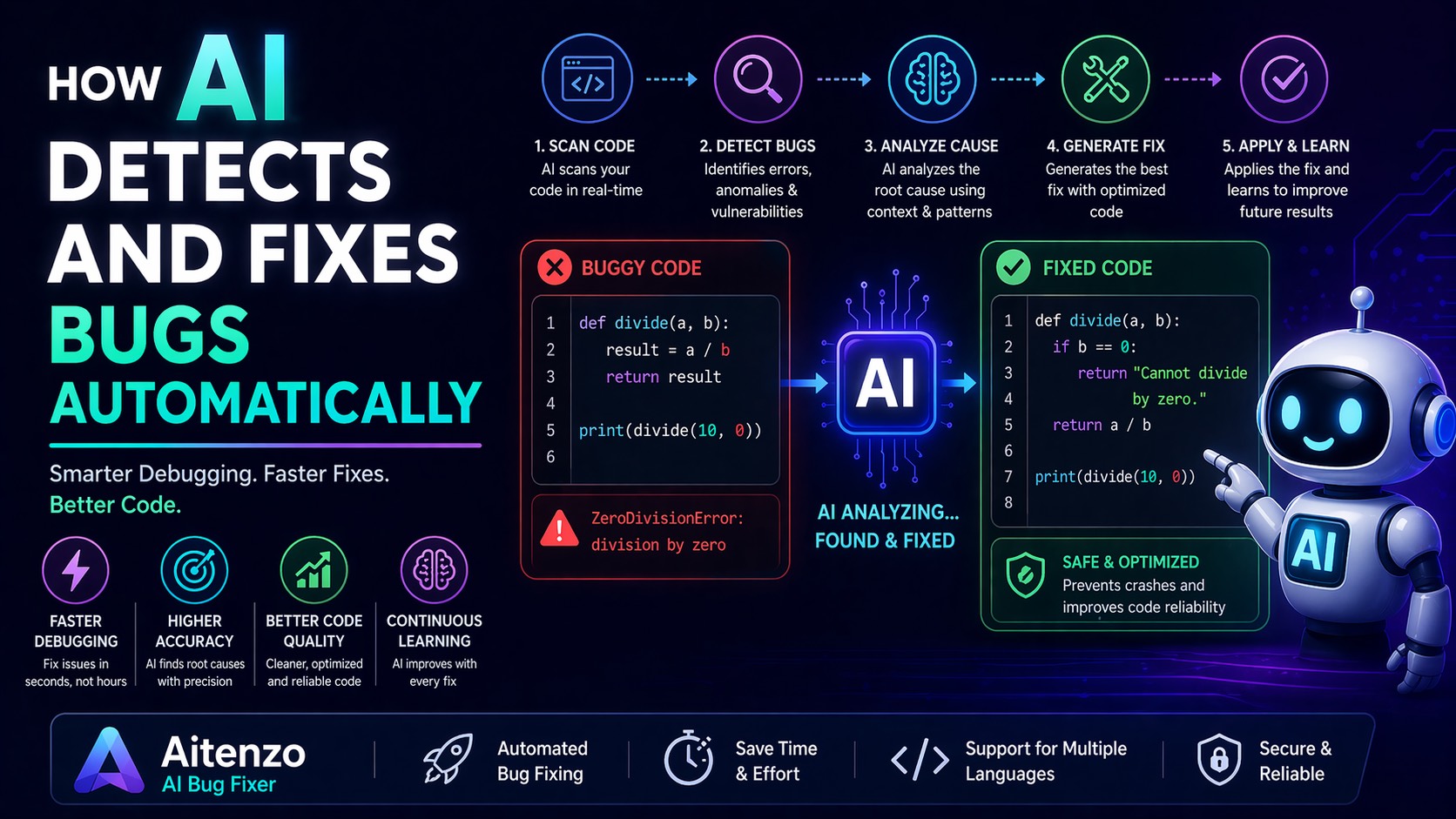
Modern AI tools like AiTenzo - Ai Bug Fixer or GitHub Copilot don’t just “guess fixes.”
They:
Analyze syntax and structureUnderstand context across files/functions
Predict intended logic
Suggest corrected code instantly
Think of AI as a real-time senior developer reviewing your code.
Step-by-Step: Fix Code Errors Using AI
1. Copy the Exact Error (Don’t Summarize It)
Bad approach:
“My code is not working”
Correct approach:
Paste the full error message + code snippet
Example:
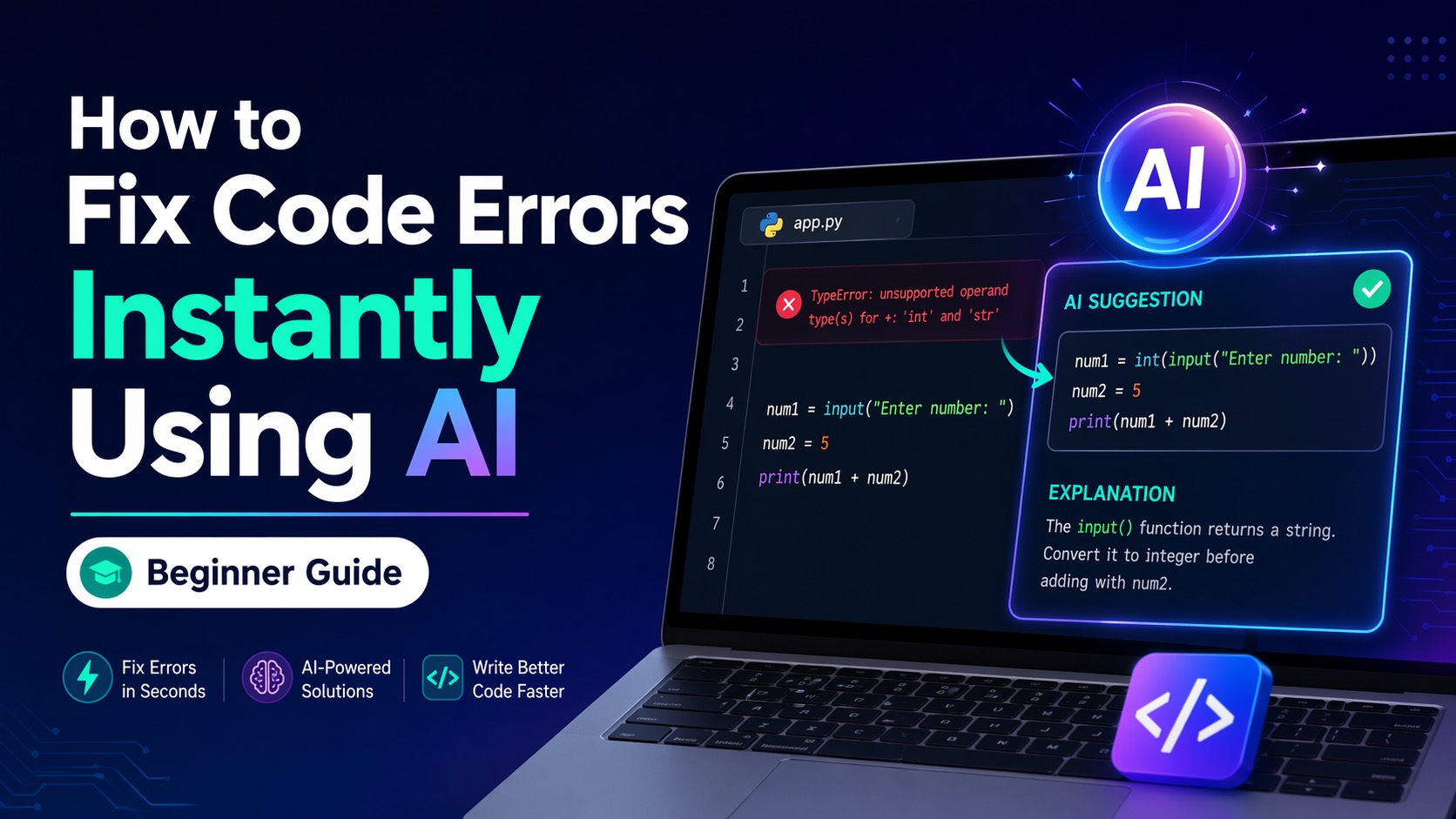
TypeError: unsupported operand type(s) for +: 'int' and 'str'
AI performs best when it has raw, unfiltered input.
2. Provide Minimal Context (But Enough to Understand)
Include:
Programming language
What you're trying to achieve
Relevant code block
Example prompt:
I’m writing a Python script to add two numbers, but getting this error:

TypeError: unsupported operand type(s) for +: 'int' and 'str'

Here’s my code:
num1 = input("Enter number: ")
num2 = 5
print(num1 + num2)
This gives AI enough context to fix both syntax and logic.
3. Let AI Suggest Fix + Explanation
A good AI response should include:
Corrected code
Reason for the error
Optional improvement
Example output you’ll get:
num1 = int(input("Enter number: "))
num2 = 5
print(num1 + num2)
Explanation:
input()returns a string → needs conversion to integer
4. Ask for Optimization (Most Beginners Skip This)
Once the error is fixed, ask:
“Can you make this more efficient?”
“Is there a better way to write this?”
AI often improves:
Readability
Performance
Structure
5. Iterate Like a Developer, Not a User
Instead of stopping after one fix:
Ask follow-ups like:
“Why did this error happen?”
“What are common mistakes like this?”
“How do I avoid this in future?”
This converts debugging into learning.
Common Error Types AI Fixes Instantly
Syntax Errors
Missing brackets, semicolons, indentation issues
→ AI detects patterns immediately
Type Errors
Mismatched data types (string vs int, etc.)
→ AI identifies incorrect operations
Runtime Errors
Undefined variables, null values
→ AI traces execution logic
Logic Errors
Code runs but gives wrong output
→ AI analyzes intent vs outcome
Best AI Prompts for Debugging
Use structured prompts like these:
Basic Fix
Fix this error and explain why it happens:
[paste code]
Deep Debugging
Find all issues in this code and optimize it:
[paste code]
Learning Mode
Explain this error like I’m a beginner and show best practices:
[paste error + code]
Better prompts = better results.
Mistakes Beginners Make While Using AI
1. Giving Incomplete Code
AI cannot fix what it cannot see.
2. Ignoring Explanations
Fixing without understanding leads to repeated mistakes.
3. Blindly Copy-Pasting
Always verify AI output—especially in production code.
4. Over-Reliance
Use AI as a tool, not a crutch. Your thinking still matters.
Real Productivity Gains
With proper usage, AI can:
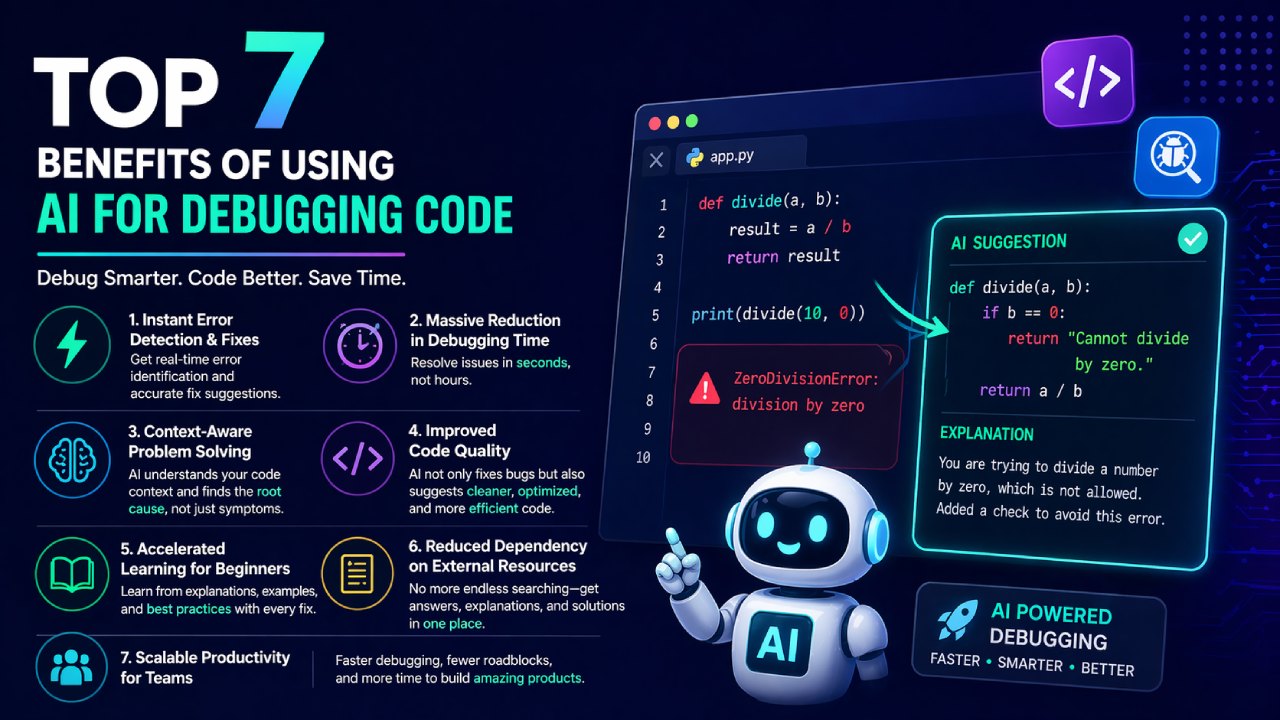
Reduce debugging time by 70–90%
Help beginners write cleaner code faster
Replace hours of searching with instant answers
Accelerate learning curves dramatically
This is why AI is becoming a standard tool in modern development workflows.
Advanced Tip: Use AI Like a Code Reviewer
Don’t just fix errors—prevent them.
Before running your code, ask:
Review this code and tell me potential bugs or improvements:
[paste code]
This proactive approach eliminates many issues before they occur.
Where This Fits in Your Workflow
A practical flow:
Write code
Run it
Hit error
Paste into AI
Apply fix
Ask for improvement
Move forward
No more endless debugging loops.
AI doesn’t replace developers—it removes friction. Once you start using it properly, debugging stops being a bottleneck and becomes just another fast step in your workflow.